
Home and catalogue
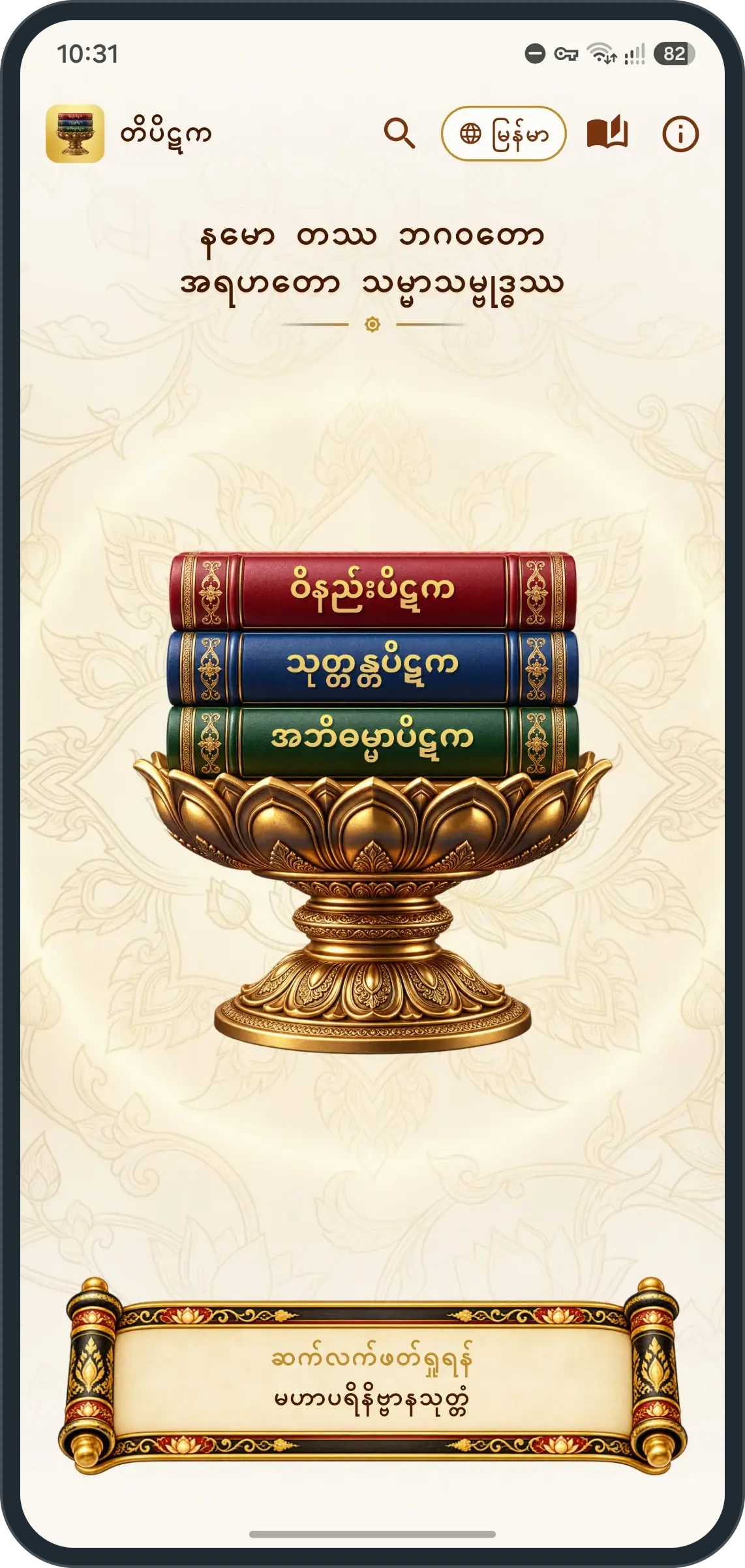
The Myanmar home screen presents Vinaya, Sutta, and Abhidhamma as three book spines. Choose a spine to enter that collection.
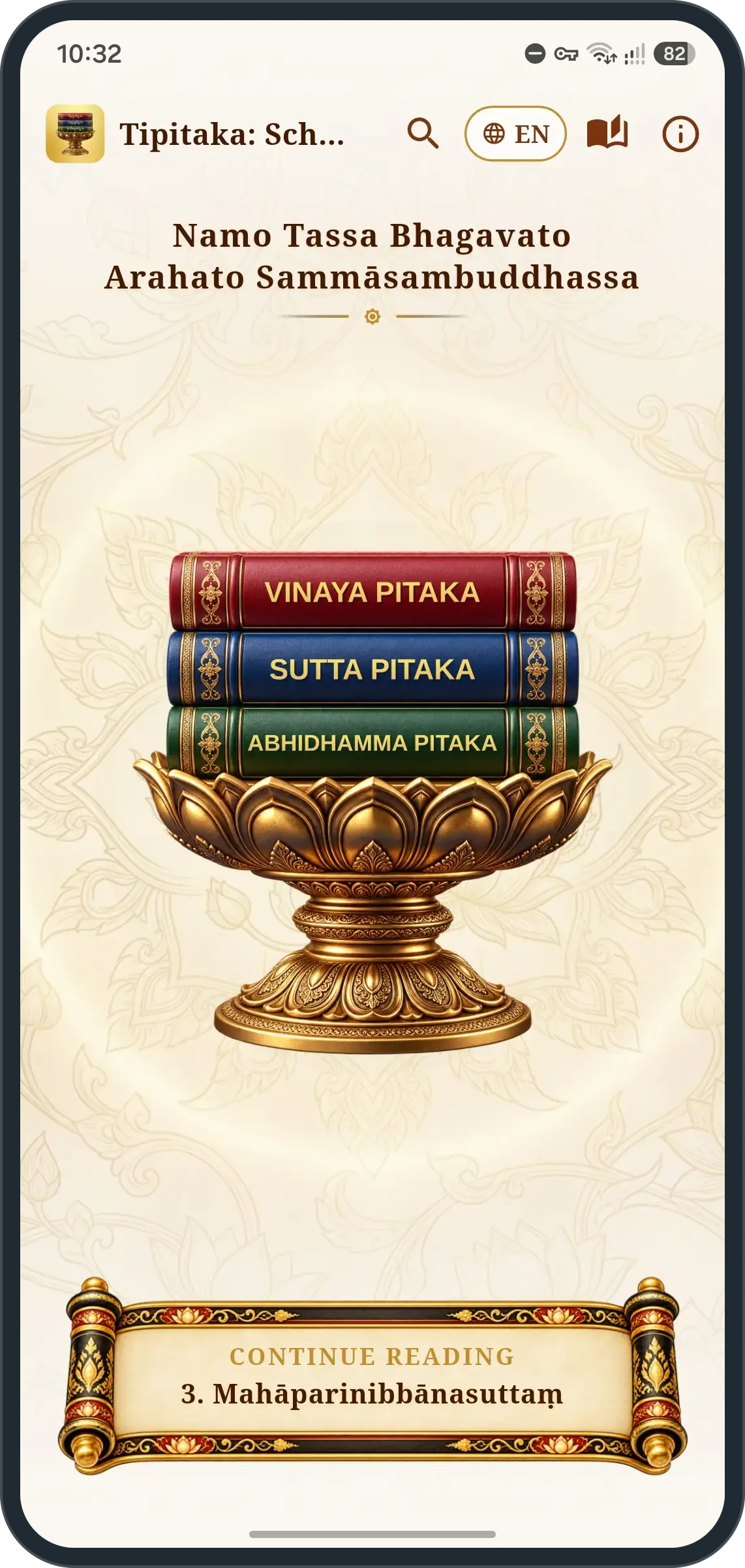
With EN selected, the three collection names appear in Roman letters. The scroll at the bottom identifies the discourse available through Continue Reading.
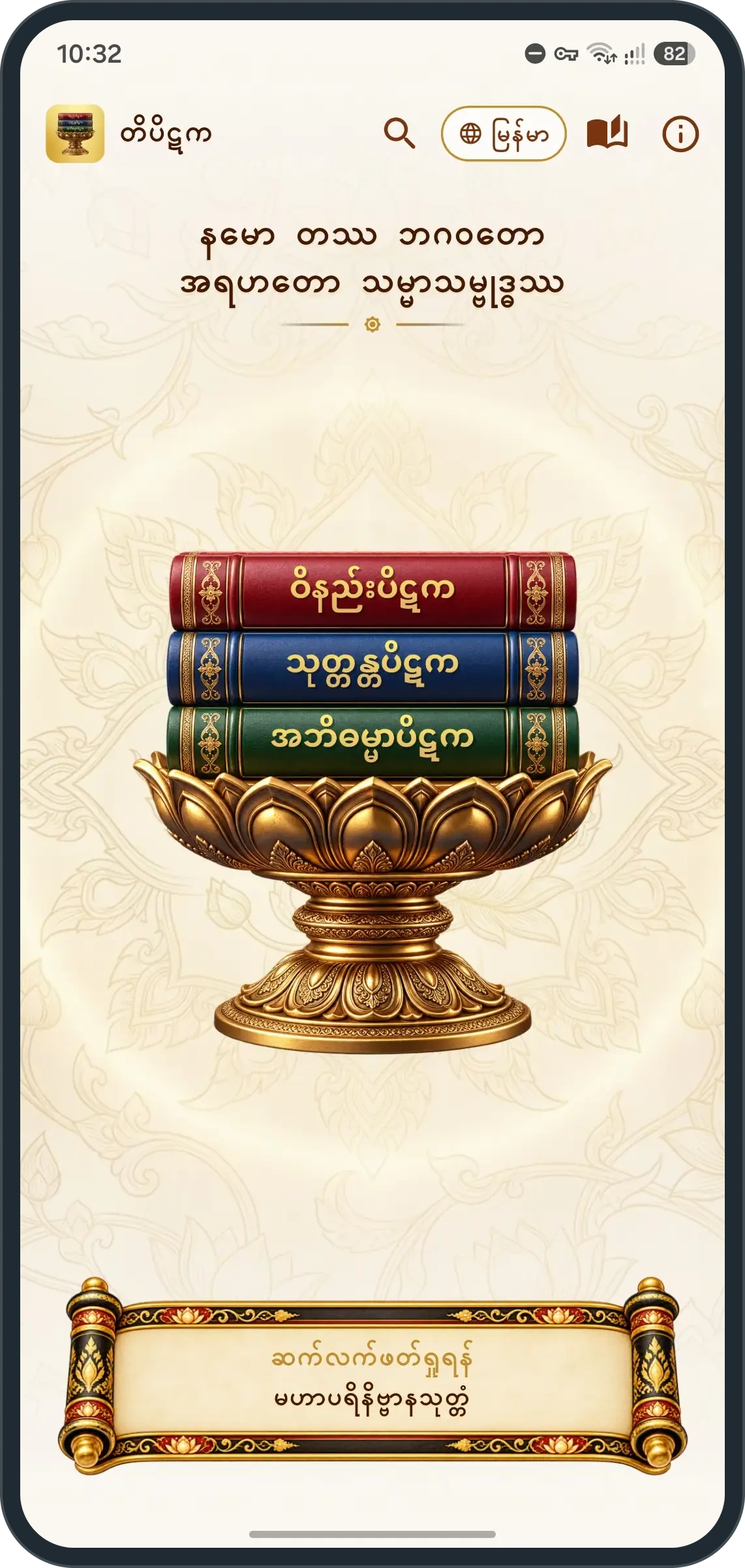
On this second Myanmar home capture, the scroll names the Mahāparinibbānasutta. Use it to return to that discourse directly from the home screen.
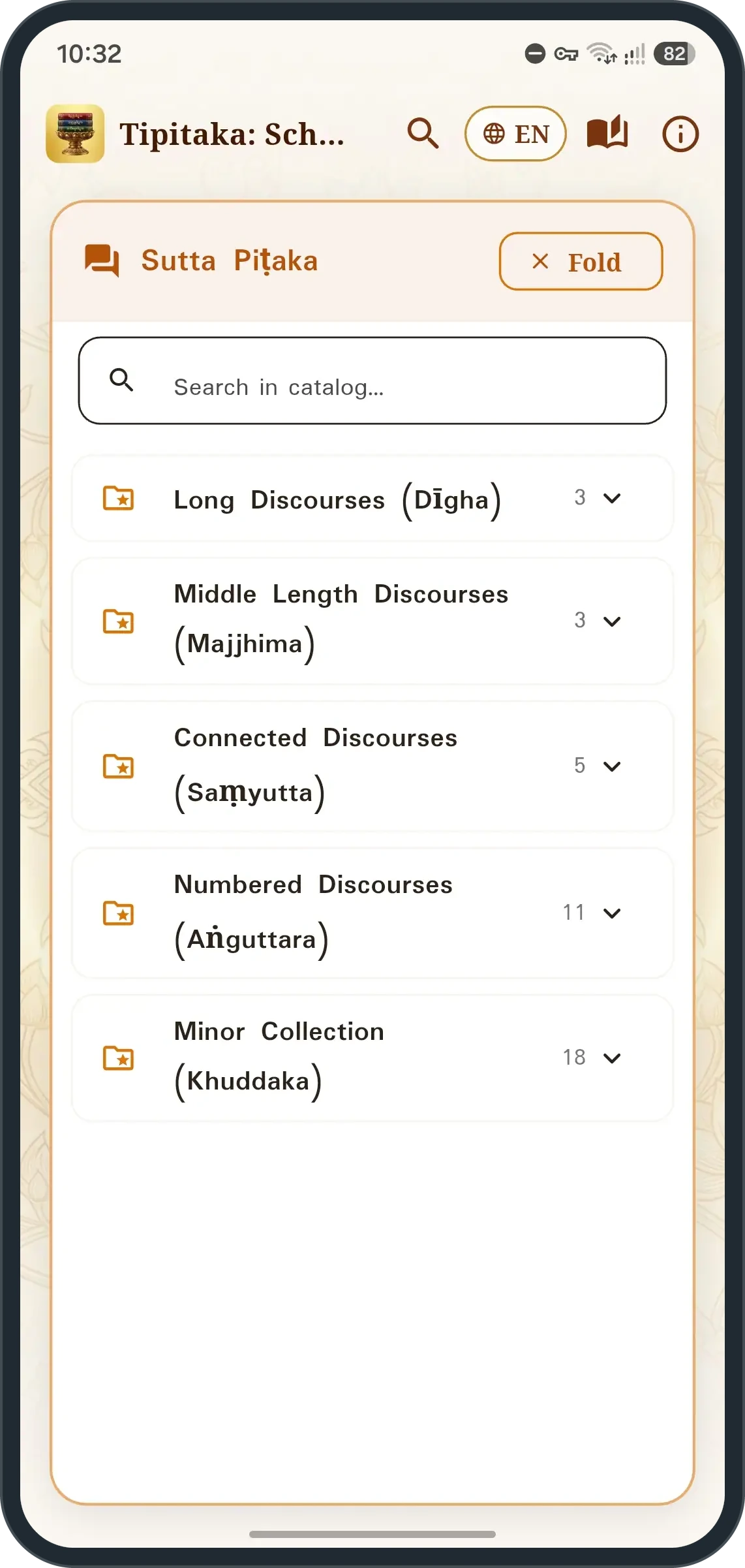
The catalogue lists five discourse collections, with an expansion arrow and a count beside each. Use Search in catalog to narrow the list.
Reading and passage actions
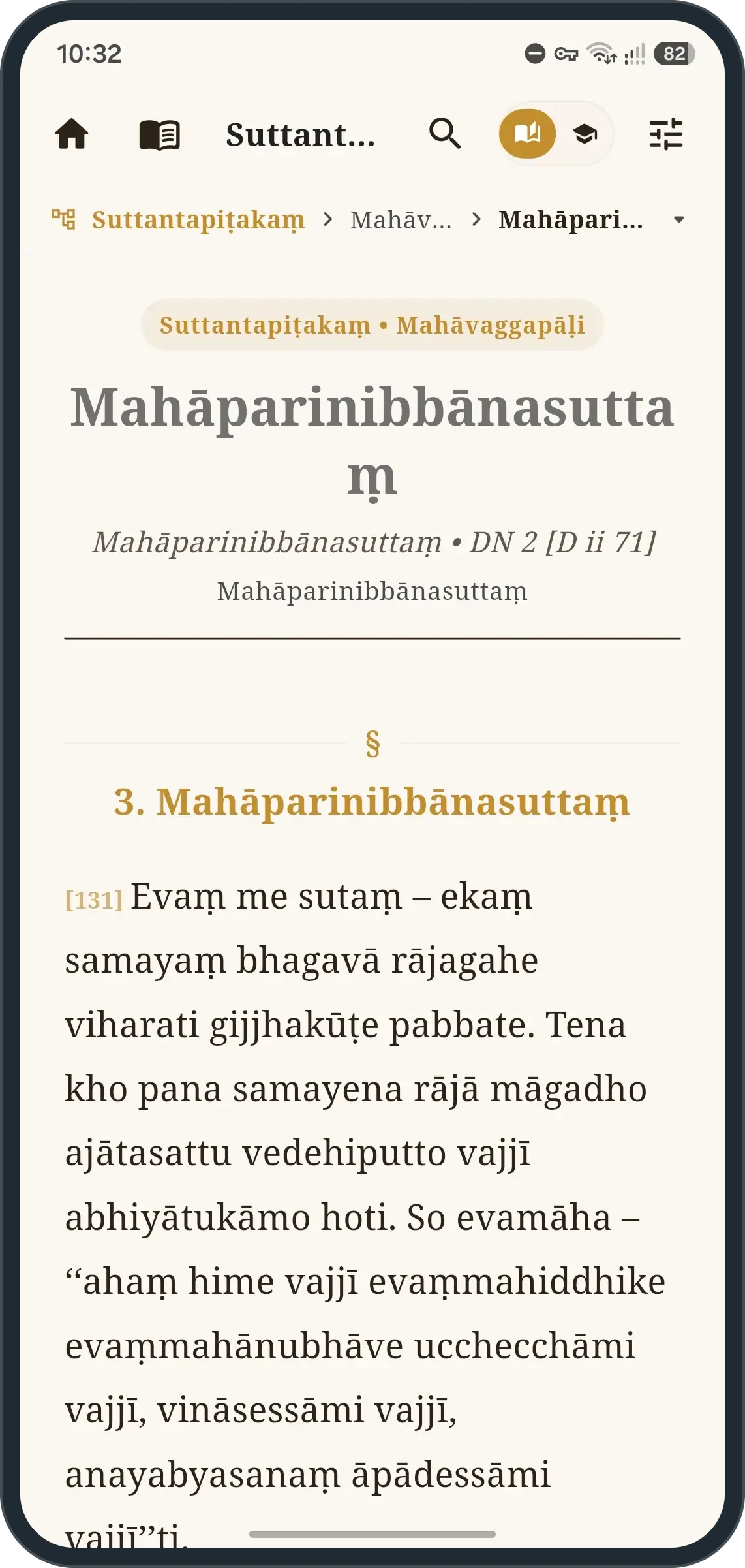
The breadcrumbs locate the discourse within its collection. Numbered passages let you follow the Pāḷi text from the opening Evaṃ me sutaṃ. The header in this capture labels this discourse DN 2 in error. Its standard identifier is DN 16.
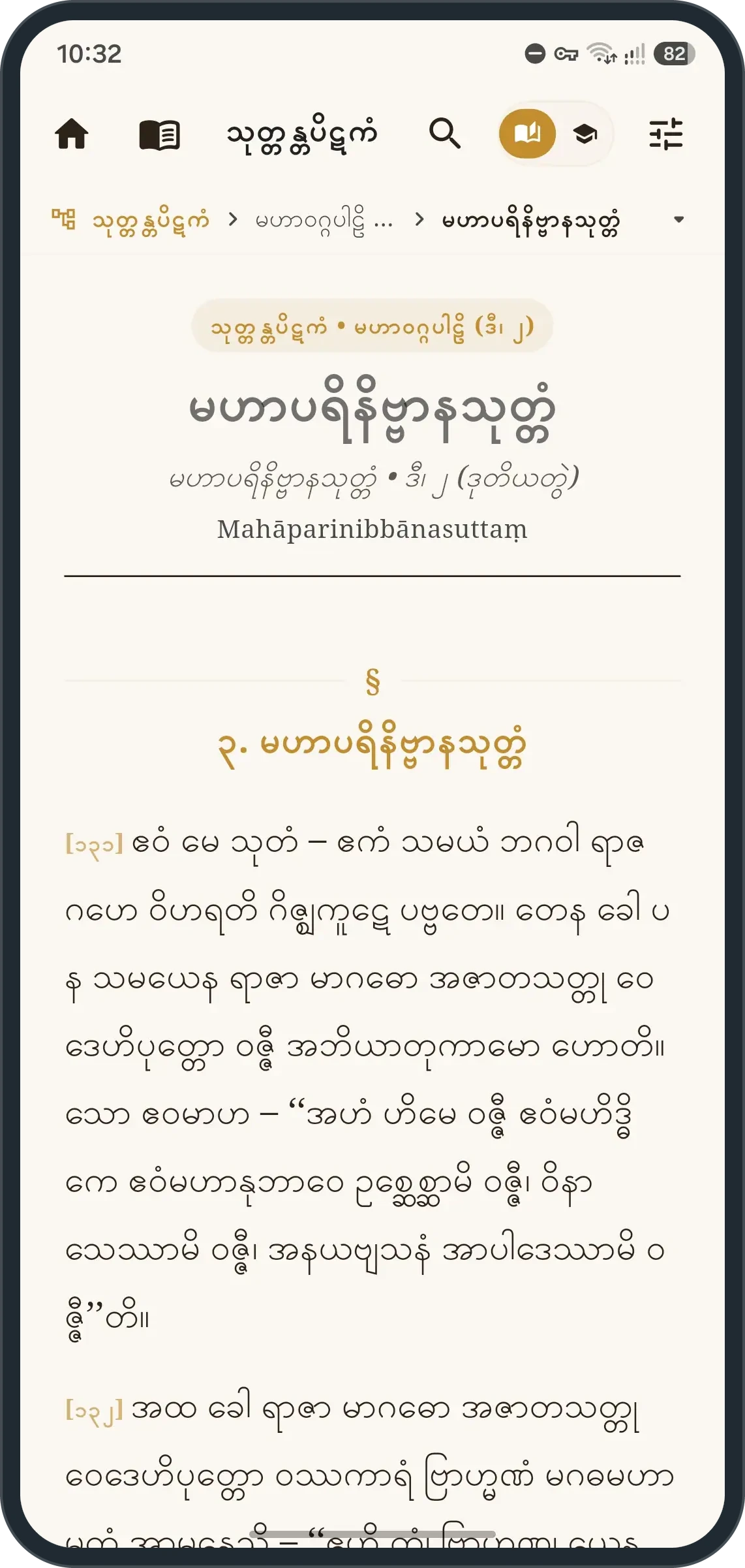
The reader displays the same opening passage in Myanmar script, with Myanmar numerals marking its sections. The Roman-script title below the heading helps identify the discourse across scripts.
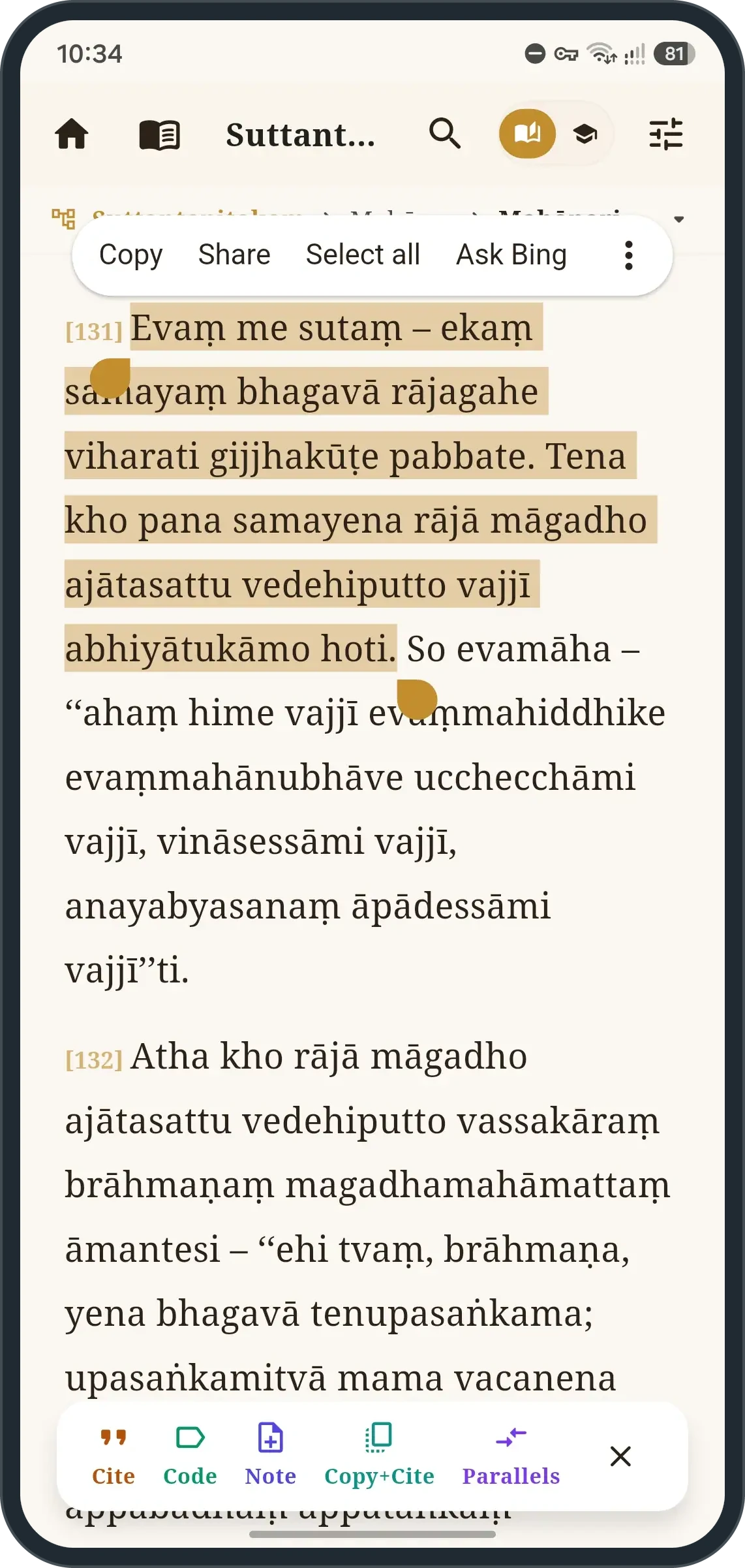
After selecting a passage, use the app toolbar at the bottom to cite it, assign a thematic code, write a note, copy it with a citation, or explore parallels. The Android selection menu remains visible above the passage.
Citations and bibliography
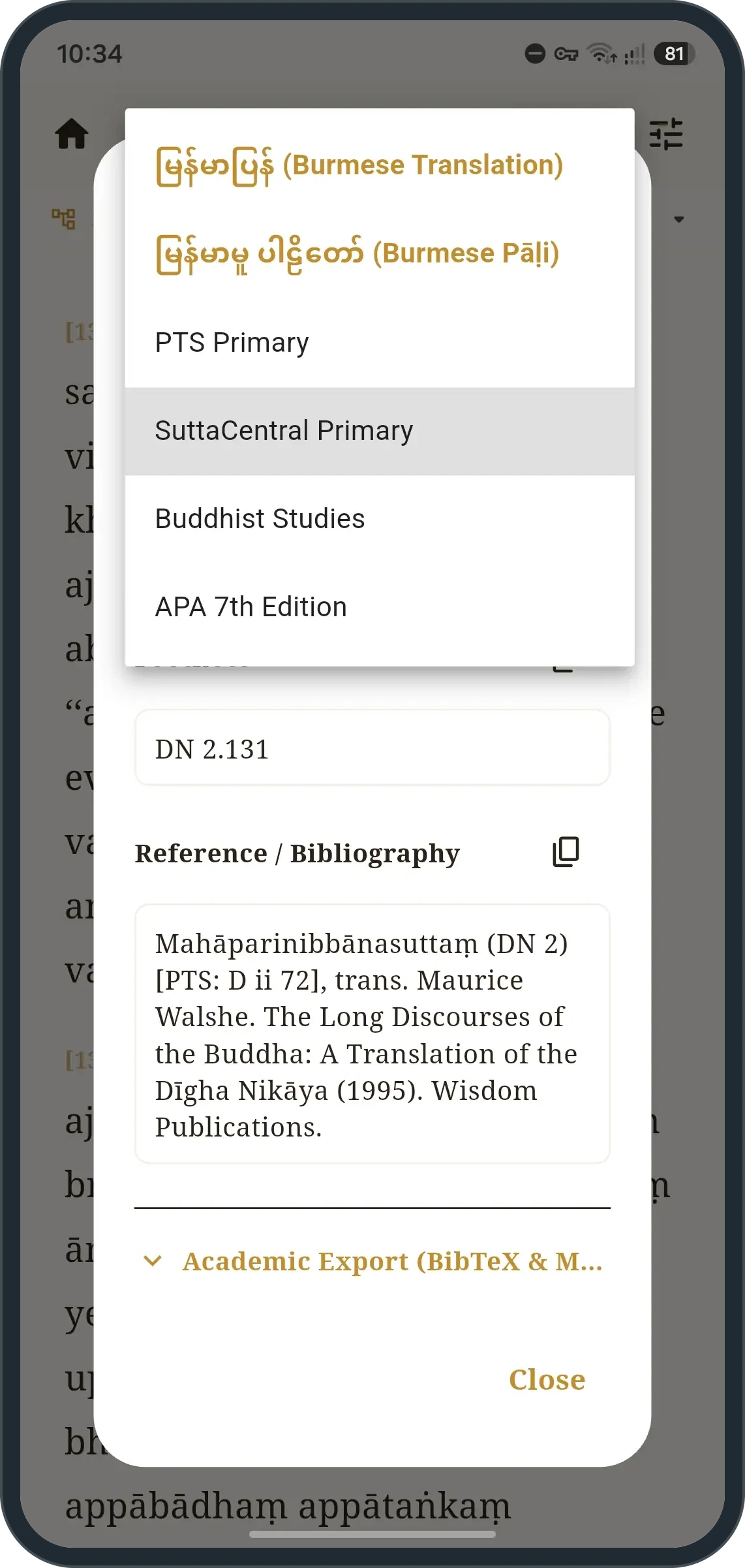
The menu offers Burmese translation and Pāḷi references alongside PTS, SuttaCentral, Buddhist Studies, and APA styles. The example underneath shows DN 2 for the Mahāparinibbānasutta. The correct discourse number is DN 16.
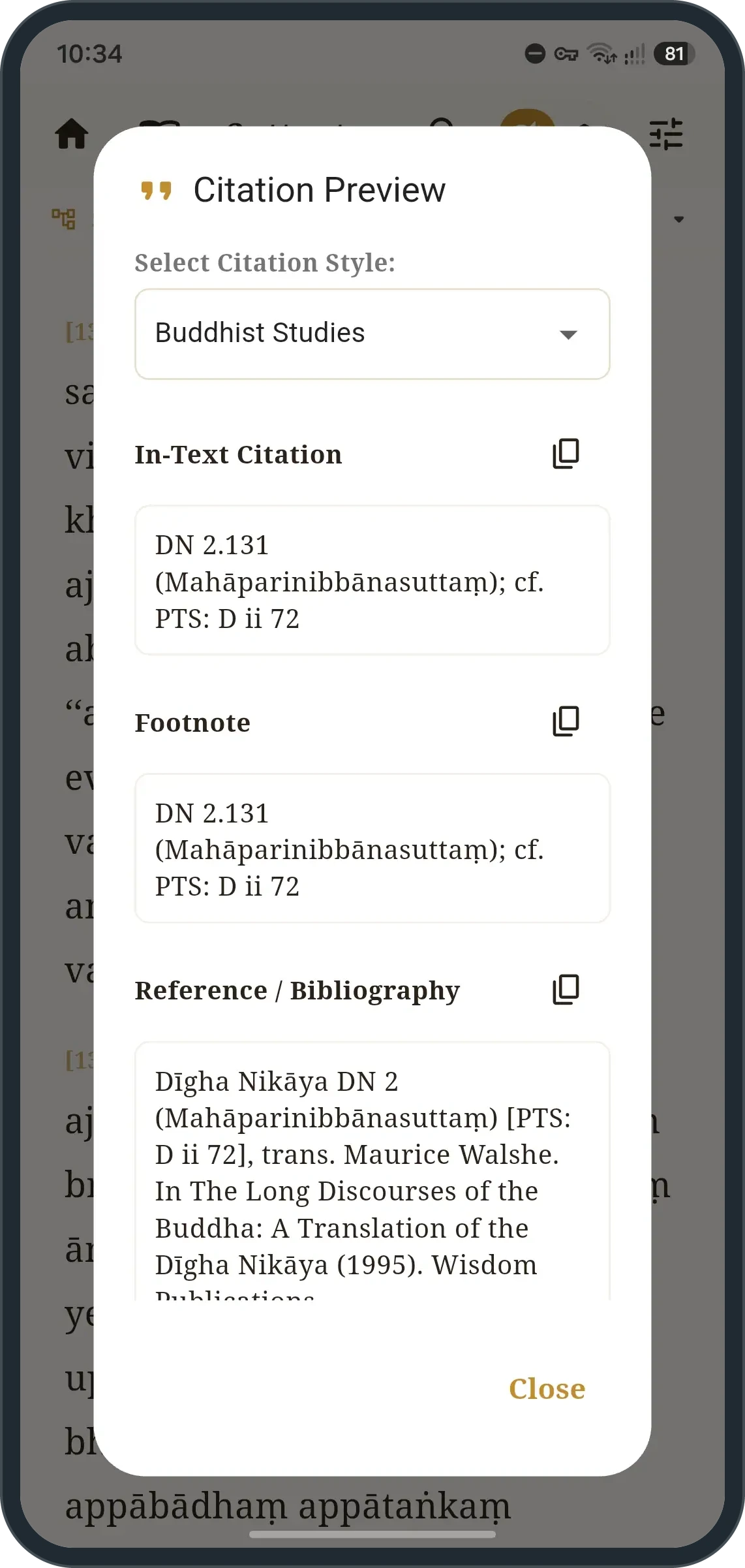
Citation Preview separates the in-text citation, footnote, and bibliography entry, each with its own copy button. This sample displays DN 2 for the Mahāparinibbānasutta. Use DN 16 when identifying this discourse.
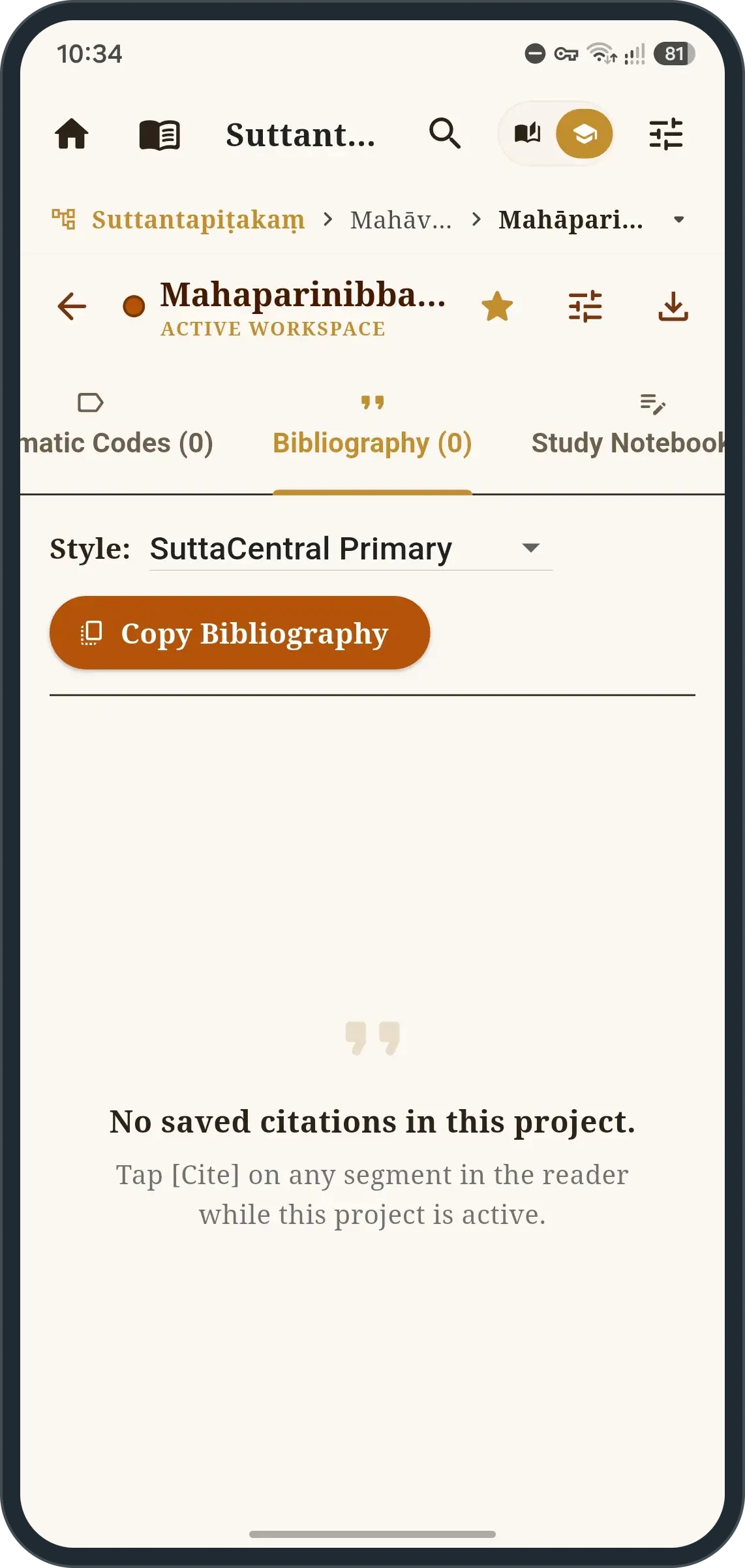
Bibliography (0) indicates that the active project has no citations yet. The on-screen instruction points you back to Cite on a reader segment to add the first one.
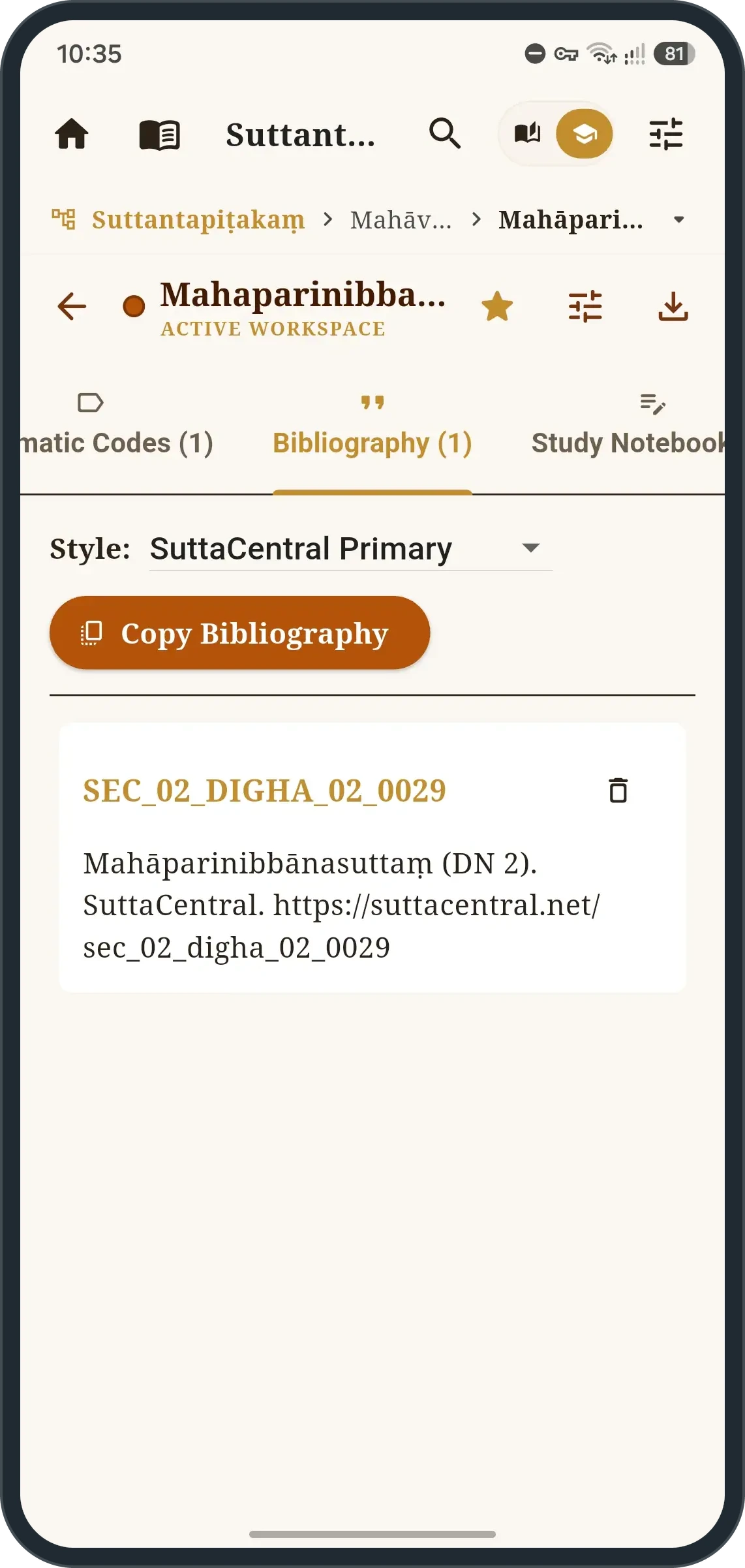
Bibliography (1) now contains a saved entry. Select a style and choose Copy Bibliography to reuse the list. The sample entry gives DN 2 for the Mahāparinibbānasutta. Its standard identifier is DN 16.
Scholar Studio projects and notes
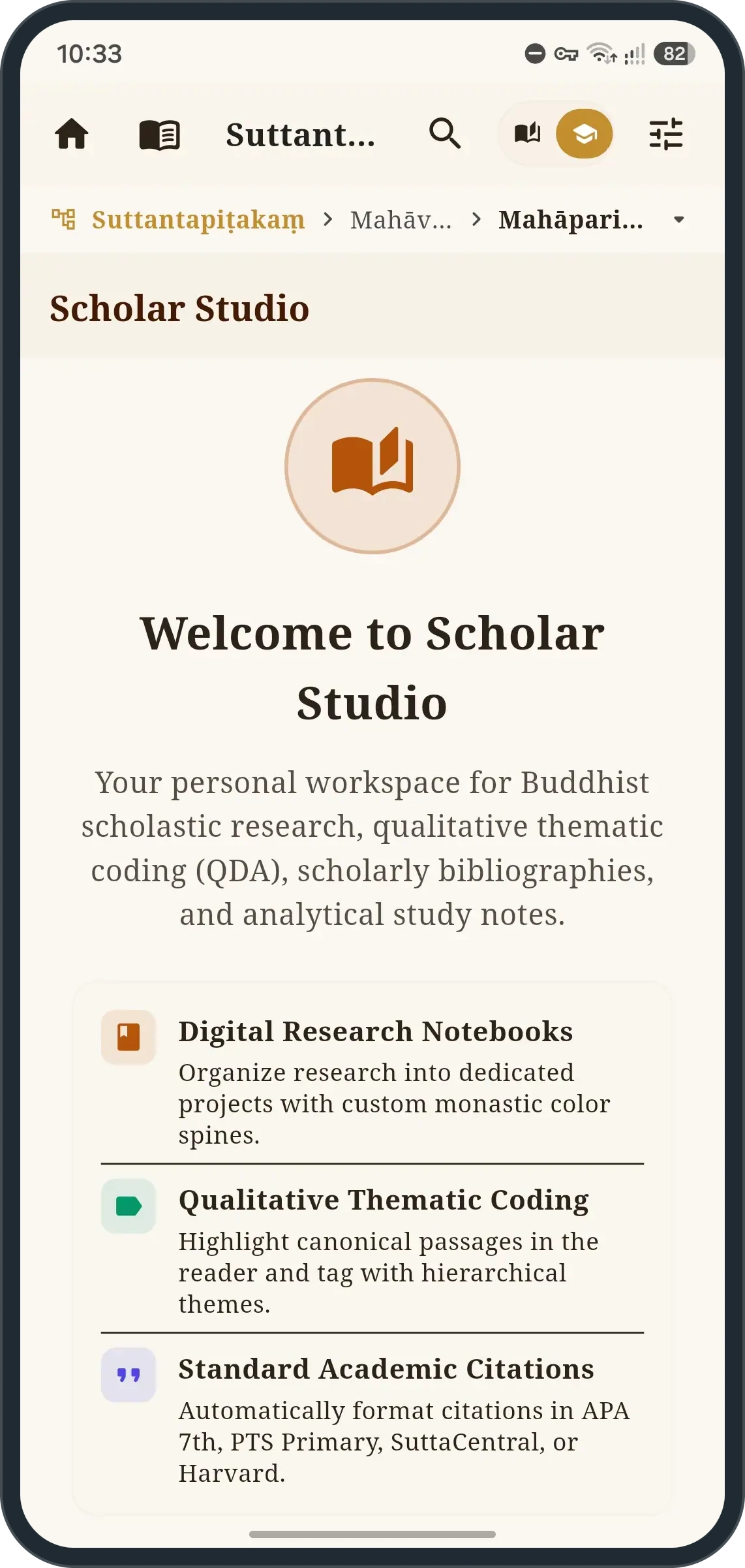
The welcome screen explains how to organize notebooks, assign themes to passages, and prepare citations. The selected graduation cap identifies Studio mode.
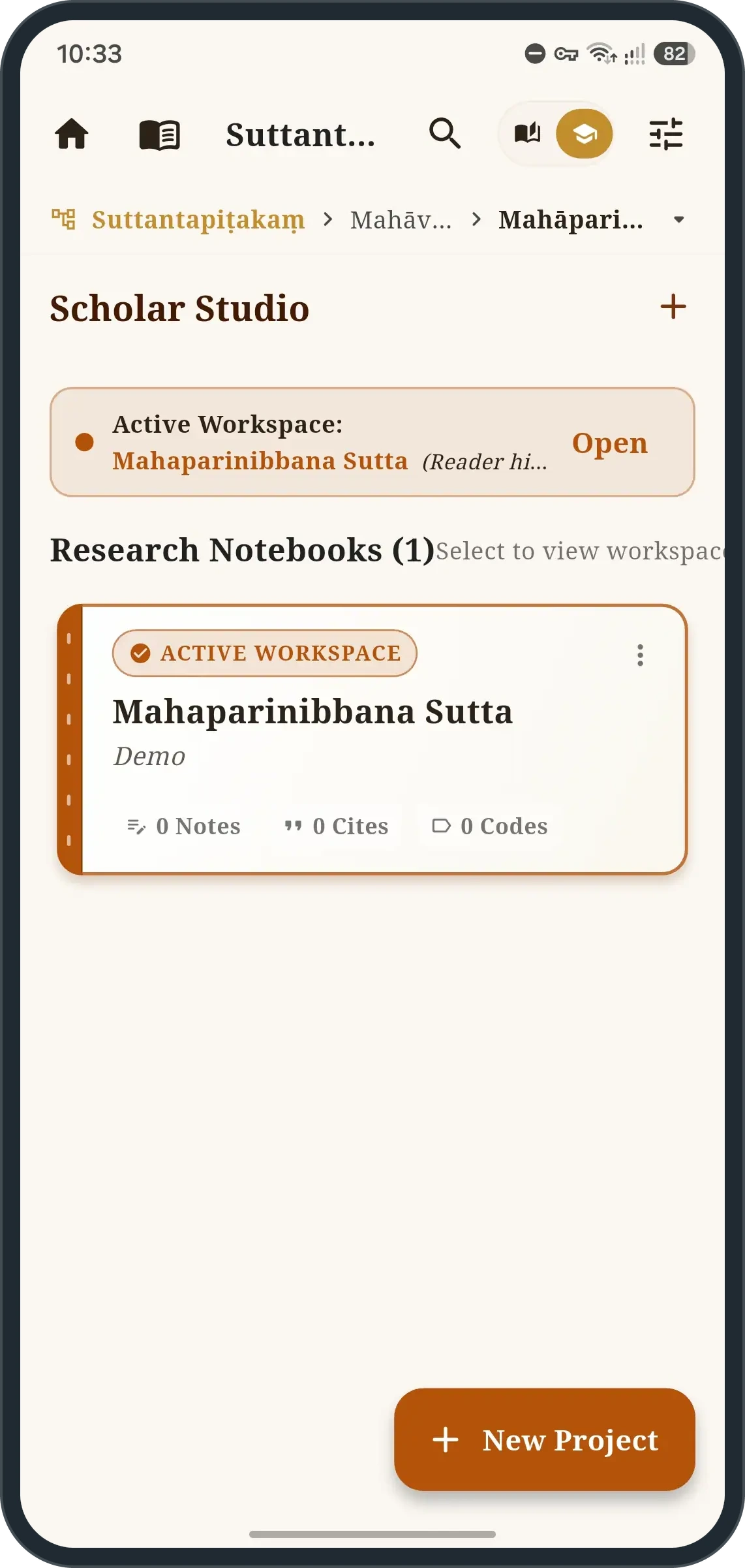
The project card names the active workspace and shows separate totals for notes, citations, and codes. Open it to continue the project, or choose New Project to start another.
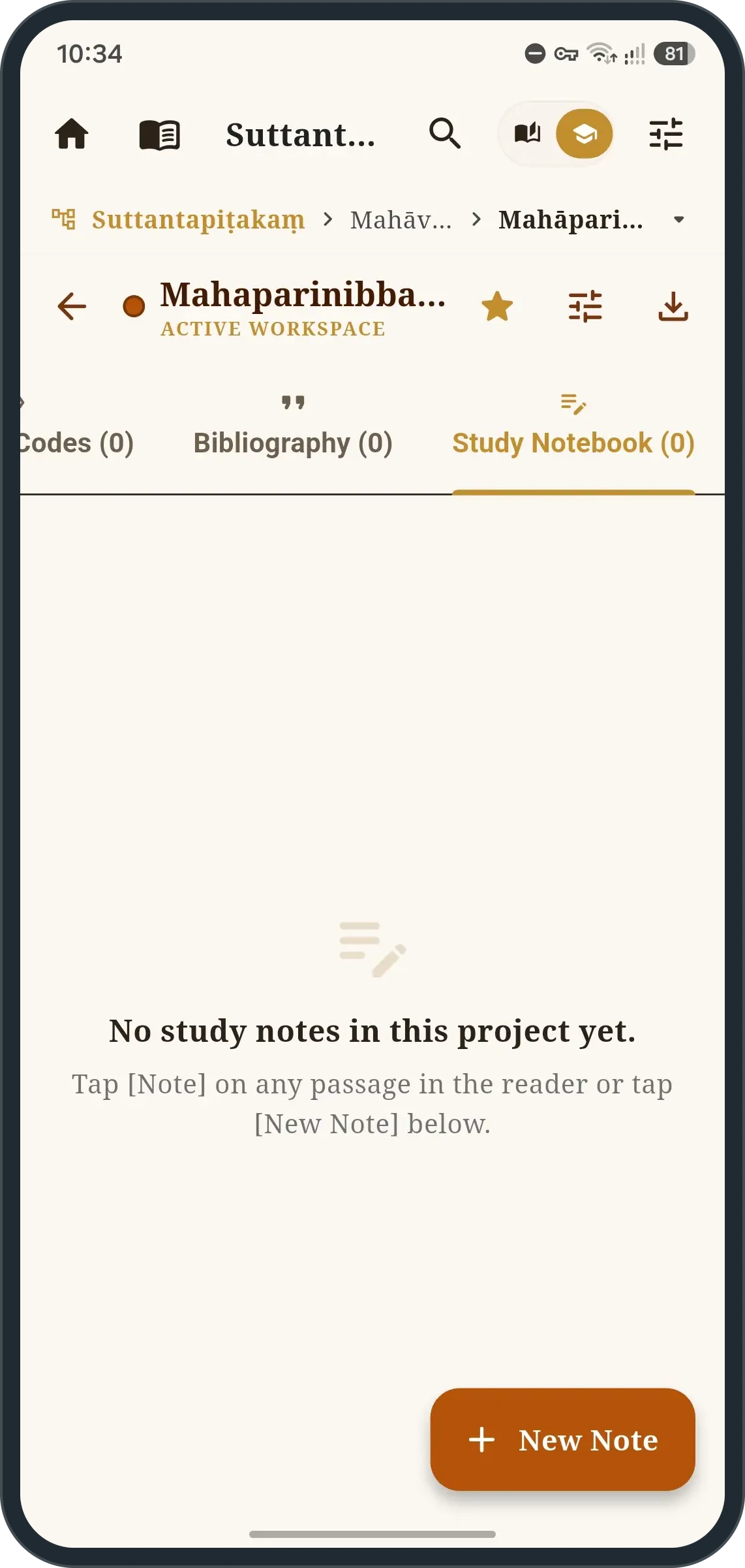
Study Notebook (0) shows that this project has no notes yet. Use New Note for a standalone entry, or choose Note on a passage to start from the text.
Thematic coding
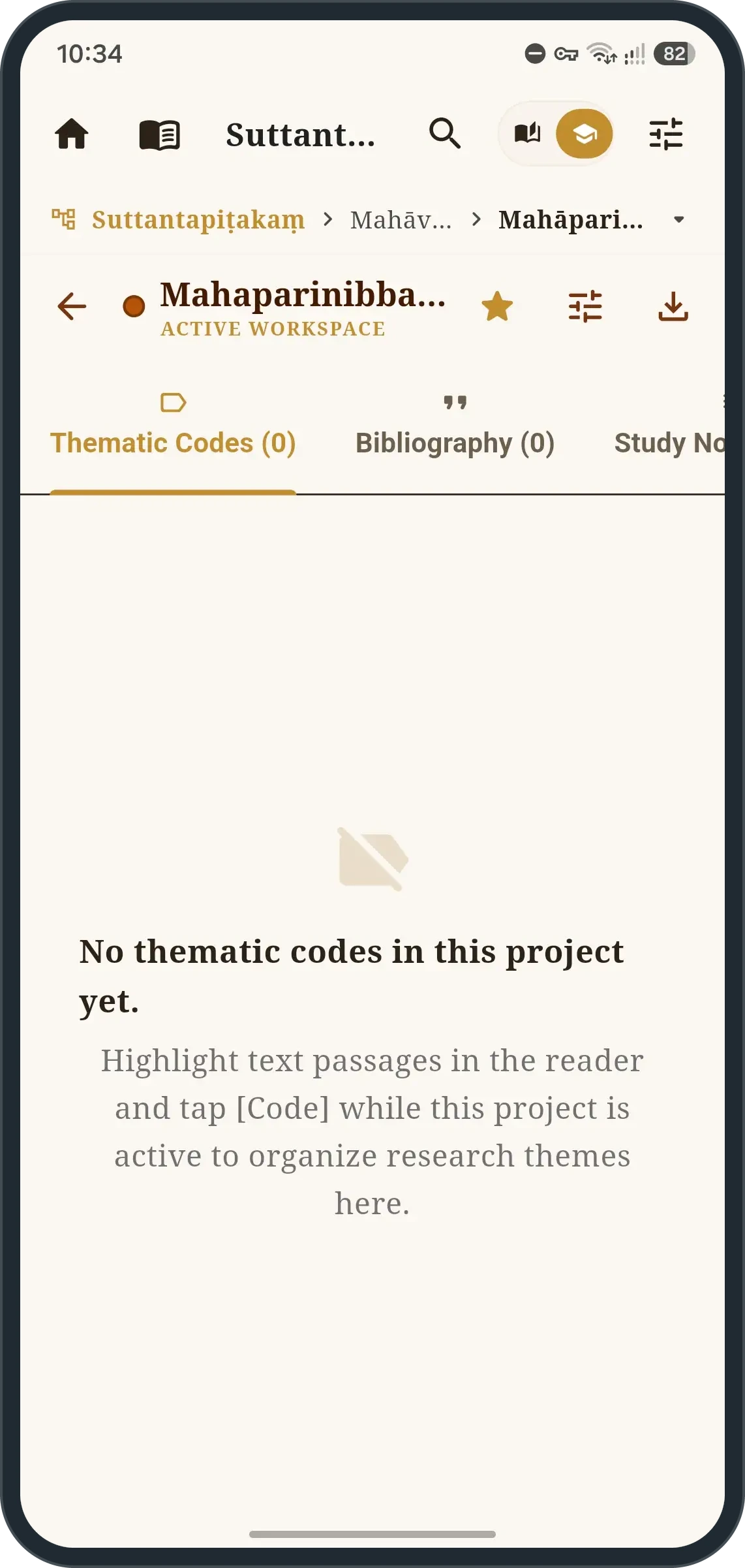
The empty Thematic Codes tab shows where your first excerpt will appear. Select text in the reader and choose Code while this project is active.
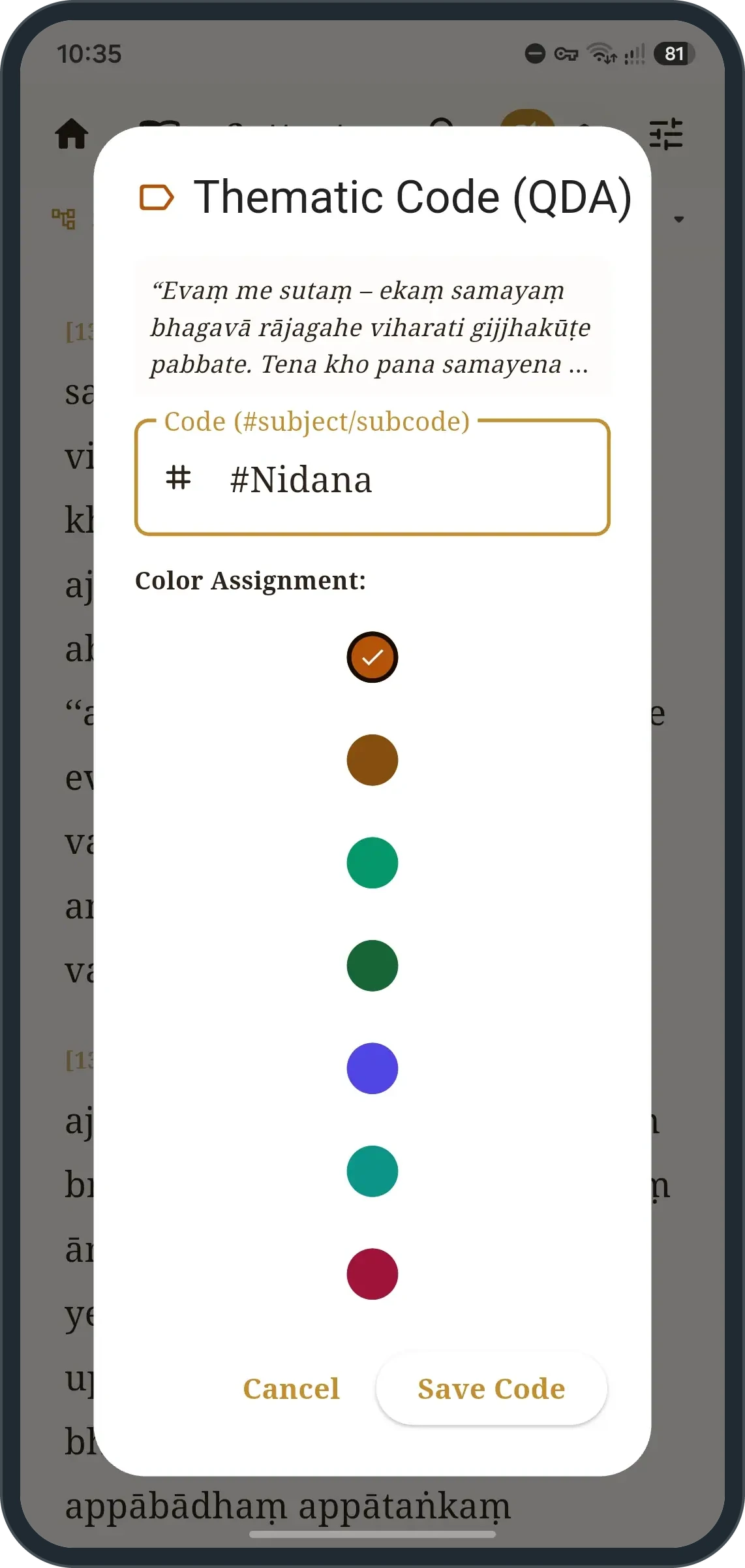
The dialog keeps the selected Pāḷi passage visible while you enter a code such as #Nidana. Choose a color and Save Code to associate that theme with the excerpt.
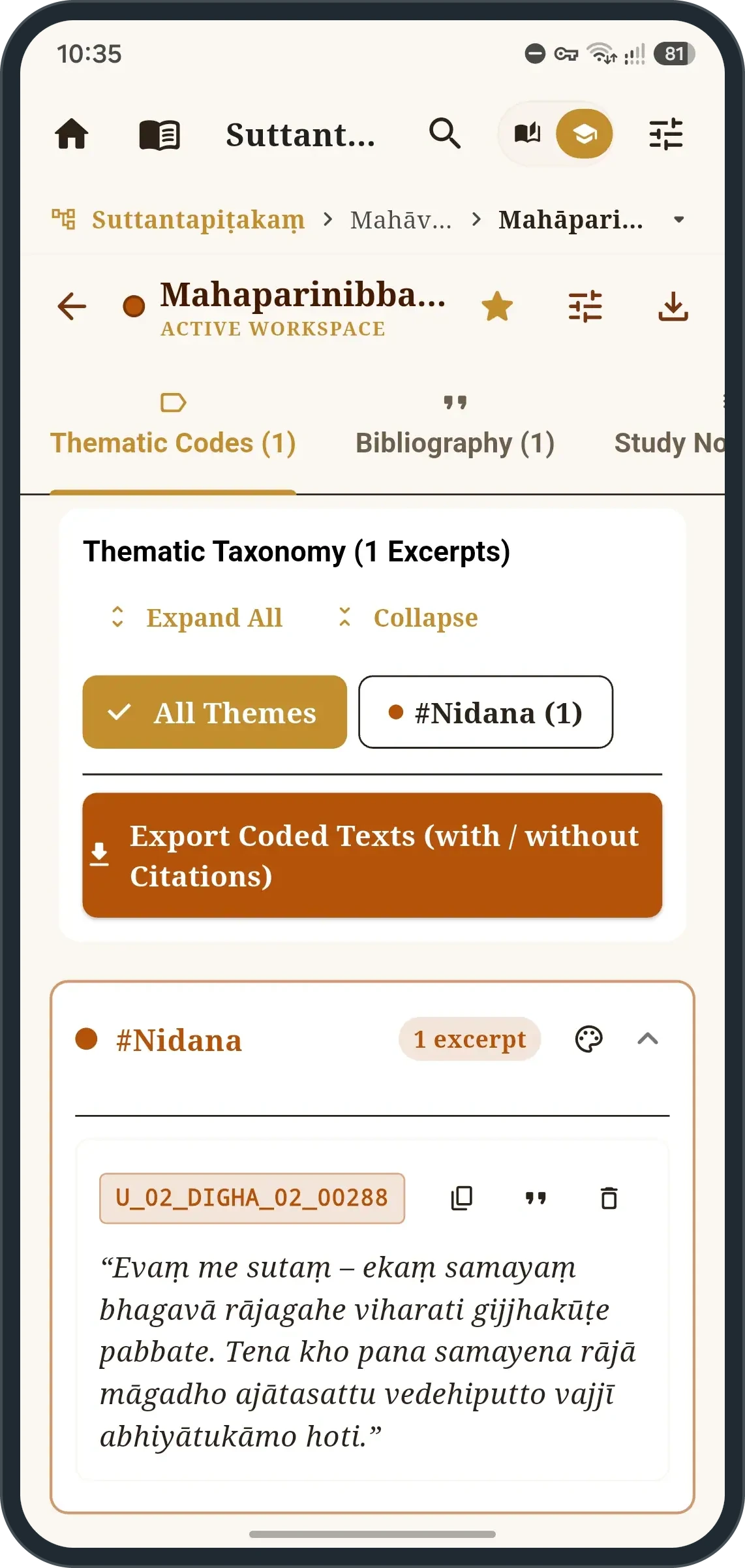
The #Nidana group now contains one excerpt. Filter by theme, expand the group to read its passage, or export coded texts with or without citations.